niyonice's blog
  • Home
  • Contact
  • android
  • tutorials
  • phone specs
  • MTN
  • blogger tips
  • promotions
  • Blogger
  • Computer
Showing posts with label tutorials. Show all posts

How to Find a Stolen or Missing Phone With Android Device Manager

Unknown  android, Android tweaks, tutorial, tutorials  20 comments

It is important for every android users to activate this options on their device should in case the unexpected happen. Losing your smartphone can be painful but you have lots of options on how to recover it. 


Android Device Manager is a Google’s official and easy-to-use tool to track your Android phone or tablet. The best thing about it is that you don’t need to install an app to be able to track your devices. The only requirement is that your device must be connected to your Google account; location access must be turned on and connected to the internet.

With ADM, you can do these;
>>Make the smartphone to ring for Maximum 5 minutes none stop
>>Lock the phone completely or
>>Wipe all the data and information's stored on the phone

Requirements
>>Turn on location access on your device
>>Make sure you are connected to a google account
>>Have an internet access on the device.

Go to https://www.google.com/android/devicemanager
Login with your google account and track the location of your phone. Simple and easy.

Read More

WhatsApp 4 Major Updates You'll Love With Image Drawing

Unknown  tutorial, tutorials  16 comments

These are some of the major updates we’ve been waiting for from WhatsApp IM for a very long time which could be worrisome to Snapchat despite the facts that they declined Facebook offer of $3 billion acquisition offer in 2013. 


A lot of features have been introduced to WhatsApp which includes;
>>Front Facing Flash and One Finger Video Zoom: When taking a selfie within the IM, the screen will light up white to brighten your environment… Even though you are in the dark, you’ll be able to take a selfie within WhatsApp messenger. And when you're holding the record button to capture a video, you just need to slide your finger up and down to zoom. These are amazing features.

>>You Can Now Write Text and Draw on Images:
When you take a photo with the WhatsApp camera, you will be able to crop the image, edit the image, type text on the image, and even annotate and draw on top of it. 

>>Bigger Emoji: Single emojis in messages used to appear the same way as all emojis (see the laughing face with tears in the left screenshot below). But in 2.16.256, bigger emojis were implemented so that these single ones would appear a little larger (see the same emoji in the middle screenshot).

>> You’ll now be able to send multiple chats at once while sharing or forwarding messages. The frequent contacts will appear on top while forwarding or sharing messages.

All these features are live in the latest WhatsApp betas that you can download by joining the official Play Store program or download the app from apk mirror v2.16.263 directly.

Read More

MIUI V8 Custom Rom For Infinix X551 Hot Note (MT6592)

Unknown  android, Android tweaks, tutorial, tutorials  18 comments

Yes, Infinix X551 Hot Note users have not been forgotten. What makes Android device awesome is the ability to tweak it to your taste. I guess you are tired of your present rom, hence you’ll love to try something new… Something new like Xiaomi MiUi v8 Global custom rom. 


First of all, credit goes the guy who ported it Dennis Murumi.
Note: This rom is based on Kitkat… You must be on stock kitkat before you flash this rom.

Features of Miui 8 custom rom for X551
Create scrolling screenshots - an amazing way to share information
· Calculate and convert almost anything with the redesigned Calculator
· Quick ball - the ultimate one-handed control tool
· Personalize your notes with beautiful templates
· Get your photos sorted for you with all-new Gallery
· Dual Apps - create and sign into dual accounts for any app, including WhatsApp, Facebook and more.
· Second space - perfect for times when you need a clear separation in your life
· Video Editing -spice up your videos with filters, text and background music
· Caller ID - automatically identify incoming numbers or find popular numbers when dialing out (India only)
· Hindi T9 - find contacts easily with T9 dialer search (India only)
· Enhanced SMS - SMS accounts of popular businesses now display logos and company names (India only)


MIUI 8 Global Stable ROM Full Changelog
System

Optimization - Sunlight display improvements (08-05)
Messaging
New - Sound for delivered messages in the Settings (07-16)
Home screen
Optimization - Landscape mode for Task manager (07-08)
Optimization - Task Manager stability (07-13)
Optimization - UI details in Task Manager (07-22)

Camera
Optimization - Camera's image quality (08-08)

Gallery
New - Automatic adjustments for photos when sharing (07-21)
New - Delete photos from device only when browsing offline albums (07-26)

Settings
New - Saved and available Wi-Fi networks appear first in the list (07-05)

File Explorer
Fix - Couldn't see files saved from dual apps (06-28)

Clock / Calculator
Optimization - Improved order for frequently used settings (07-01)
Fix - Quick ball disappeared in some cases (08-05

Before You Flash,
>>Make sure you Infinix X551 is rooted
>>Make sure you have Custom recovery installed on your device, e.g Philz touch
>>Back up your stock rom, before you proceed.

Where Can I Download it?
Download Miui V8 custom rom here

How to Flash The Rom?
>>Place the downloaded rom in the root of your external SD card
>>Boot to CWM Recovery Mode (Power Off your Phone and then Press Power Button + Volume Up Button until the Recovery)
>>Go to WIPE menu and select CLEAN TO INSTALL A NEW ROM, confirm when prompted
>>After the wiping is done, navigate to install menu and choose install zip from sdcard1
>>Navigate to the ROM zip and select it to flash... Wait for the flashing procedure to finish
>>Once flashing is done, REBOOT your device

You have now successfully installed MIUI 8 on your Infinix Hot Note X551. Please if you do have any question, don’t hesitate to ask.

Credit: AndroidhQ254

Read More

2 Easiest Ways To Find Direct Download Link of Any Movie in HD Format

Unknown  computer tutorial, mobile tutorials, PC tutorials, tutorial, tutorials  2 comments

I don’t know if you are like me but I love watching movies, it helps me calm my brain after working my self out. It is not all the time we’ll love to go to the cinema to see a movie considering the facts that what you currently have in your hand is a device that can do almost everything.


I love movies, latest movies but searching online can be frustrating most atimes but I’ve got a simple tip for you all and it will help you to get any moviedirect download link in seconds without wasting too much time clicking on irrelevant ads.

No long stories, straight to the point. I’ll give you two methods, choose anyone you preferred. It is called Google Dorks method of finding any direct download link of any movie.

Method 1:
>>Open your browser either from your smartphone or PC and simply go towww.google.com
>>Copy and paste the code below in the search bar and add the name of the movie you wish to download after
Code: intitle:index.of? mkv
e.g intitle:index.of? mkv Genius

>>Carefully check from the result page the link that contain your movie, open it and you’ll seethe direct download link

>>Click download, and your download will begin in HD format. No time to waste.

Note: In the case where you have so many result on a particular link, Press CTRL+F and search for your movie. Once seen, click on download and your download will begin.

Method 2:
>>Open your web browser from your smartphone or PC
>>Go to www.google.com  and copy the below code into your search box

Movie Name -inurl:(htm|html|php|pls|txt) intitle:index.of “last modified” (mp4|wma|aac|avi)

>>replace the Movie name with the movie name you wish to download
e.g  Escape Plan -inurl:(htm|html|php|pls|txt) intitle:index.of “last modified” (mp4|wma|aac|avi)


>>here is my direct movie link
 
>>Click on the download link and it will be downloaded in HD quality for free without wasting anytime clicking irrelevant ads.

This trick is also useful for searching any .exe format document by just replacing the mkv or avi at the end.
Hope this is helpful?

Read More

How to Recover Deleted files Using DiskDigger Pro For Android

Unknown  android, tutorials  5 comments


Have you ever landed in a situation where as you mistakenly delete an important file and you ought to use it again probably in the next one hour, and then you go downloading or designing the file.. Its not just a good idea So I know you guys must have heard of recycle Bin on PC. This app this its equivalent because it helps you recover deleted files formats like JPG, PNG, MP4, NEF, DCR, PEF, DNG. M4A, 3GP, MOV, PDF, XPS, ODT, ZIP, APK, SNB and so many other formats on your android smart phone.
Note: Your device has to be rooted to enjoy the privilege. Unrooted devices can only recover a lower resolution versions of your photos that it finds it the caches and thumb nails of the directories.

Requirements:
Android version must be 2.5 up
Root required
App size: 7mb
GET THE APP FOR FREE FROM HERE

Read More

How To Share Apk Files (android app files) Via Whatsapp Messenger

Unknown  android, Android cheats, Blackberry, tutorial, tutorials, tutorials mobile tweaks  3 comments

Do you know that you can send apk file (android app file) to your friends and families through whatsapp messenger? A lot of people use this simple method to share apk files especially when they are using whatsapp subscription only. The concept is renaming apk to doc and doc to apk then install. Kindly follow the steps below to see how it works.

As a sender of apk file

=> Locate the apk file you want to share to a friends via whatsapp messenger in your sd card


=> Now press the apk file to select and click menu => Rename


=> Now rename apk to Doc and click Done to apply the changes then press OK to confirm


=> Now is time to send the apk file as doc file via whatsapp, long press the renamed file to select the navigate to share menu options and select whatsapp messenger


=> Now choose the person or group you want to share the file with and send it.


=> Then tell the receiver of the file to download it and locate in his/her sd card inside whatsapp forlder under whatsapp documents and rename the file from doc to apk then install it


-

Read More

How To Activate Your Android’s Camera Flash As Incoming Call and Sms Notification

Unknown  android, Android cheats, tutorials  4 comments


How To Activate Your Android’s Camera Flash As Incoming Call Notification
You need to install an app named Flash Alert 2 on your Android Smartphone this is a trustable app and you can install this app via third-party or via Google Play Store. Download Flash Alert 2 by clicking HERE.
Step 1. Download Flash Alerts 2 App on your Android Device and install it. Give it enough permission to handle your flashlight and incoming calls and notifications.
How To Activate Android's Camera Flash As Incoming Call Notification
How To Activate Android’s Camera Flash As Incoming Call Notification
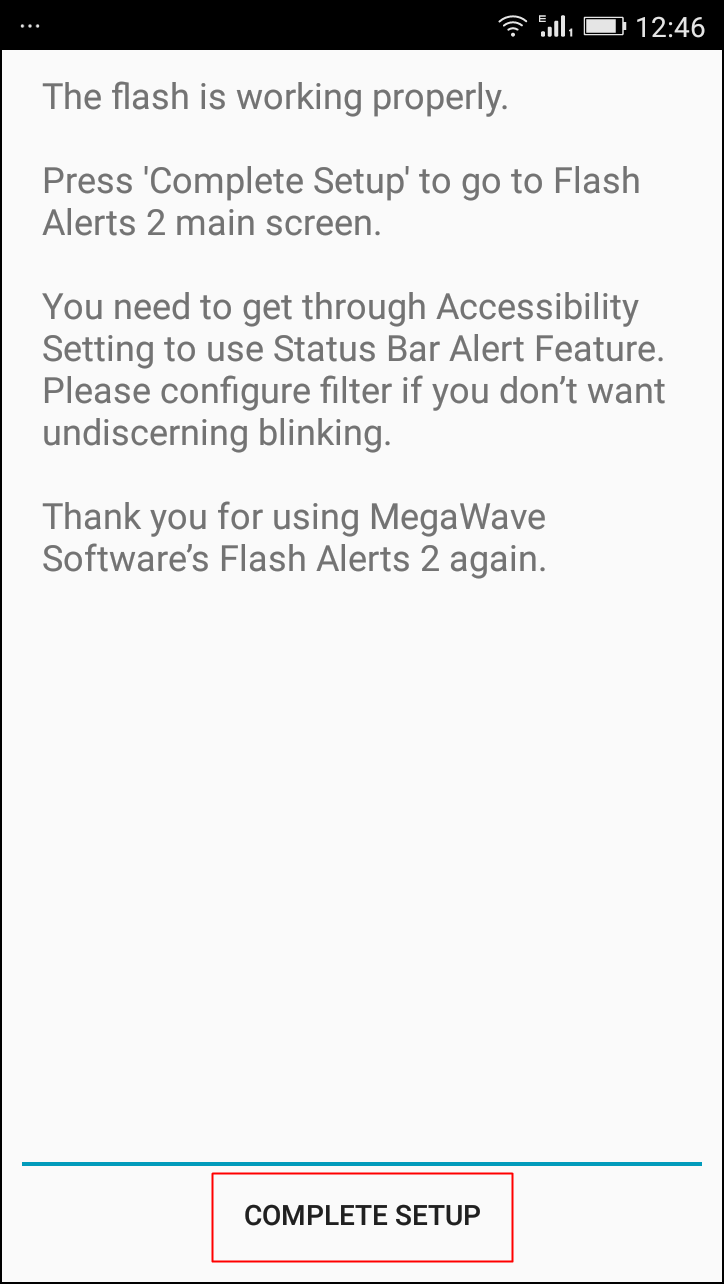
Step 2. After installing Launch the applications, it will hardly take 10-15 seconds to launch for the first time because it takes some priority on your phone flash. After the installation completes it will ask you to do a test, you need to follow the onscreen instruction in order to complete the test.
How To Activate Android's Camera Flash As Incoming Call Notification
How To Activate Android’s Camera Flash As Incoming Call Notification
Step 3. Make Sure the flash Alerts is on in the App and the incoming Call option is enabled. After you had updated the setting make sure to save it and then reboot your phone.
How To Activate Android's Camera Flash As Incoming Call Notification
How To Activate Android’s Camera Flash As Incoming Call Notification
Step 4. After the reboot Open the app and activate it once again. and now its time to wait and receive an incoming call. And you will see that your phone LED flashlight is blinking while receiving any call.
How To Activate Android's Camera Flash As Incoming Call Notification
How To Activate Android’s Camera Flash As Incoming Call Notification
That’s it! you are done you have successfully activated Your Android’s Camera Flash As Incoming Call Notification.
So now there will be no hard time receiving any call every incoming call will be the cool one. And it was one of the tricks you will love to share with your friends because this is very rare and new. So without wasting any time make use of this app and activate your phone flashlight as your incoming call notifications. But beware overuse of this feature might create battery issue.

Read More

How To Turn Your Android Into A Portable Scanner

Unknown  Android tweaks, mobile tutorials, tutorials  3 comments

How To Convert Your Android Device Into A Portable Scanner
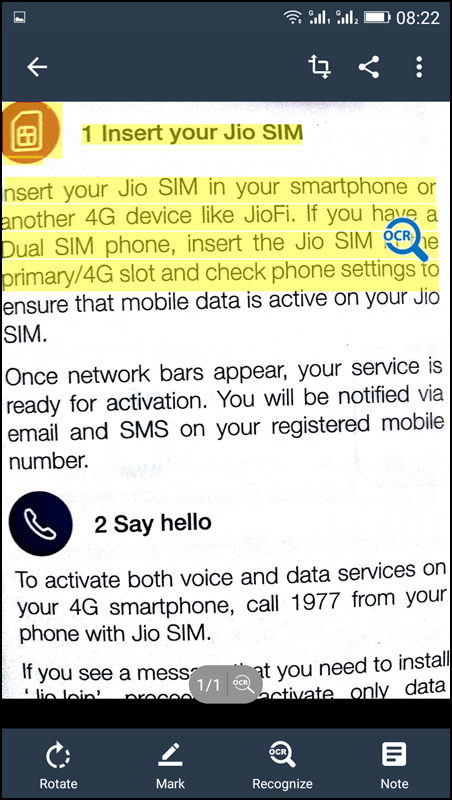
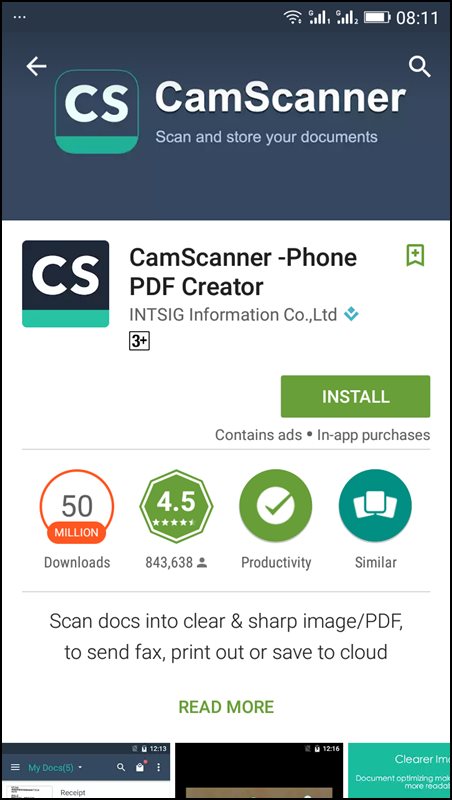
Today I am going to share something interesting which will be very beneficial to most of us. I want you to meet the App named Camscanner. Guess what, it is an Android app which manages to offer the feature of Optical Character Recognition in your Smartphone, in other words, it scans the images with the help of your Phone camera and it creates the TXT file of the scanned images. In short, it acts as a portable scanner.

How to use Camscanner As a Portable scanner for your Phone?

There are few easy steps which you must follow if you want to convert your Android smartphone into a portable scanner. But let me clear you one thing, first it is a third party app, but there is no risk of your privacy being broken because this app is from trusted developers of Android. Follow the Steps clearly

Step 1. Before installing Camscanner in your Android Smartphone, first Reboot your phone and then install Camscanner by clicking HERE. Once installed Launch the app in your Android handset.


Camscanner
Camscanner

Step 2. Now you will be redirected toward the Login/Register Screen. Register if you are not registered and in case if you already registered simply login with your User Id and Password. This is a paid app. But Camscanner is giving away the 30 days free service for new users.


Camscanner
Camscanner

Step 3. If you completed the registration part, Camscanner will be ready to use, you can see the camera icon on the downside of your display and you need to take your camera closer to document in order to focus the words.


Camscanner
Camscanner

Step 4. After the camera is adjusted, you need to click on Tick option that is on a right side (down) of the app. It will automatically start scanning and saving your document in TXT or PDF formats. All done.


Camscanner
Camscanner

Now you can easily transfer your scanned files to your computer by locating its destined folder.


Using Office Lens


Office Lens
Office Lens

Office Lens is like having a scanner in your pocket. Like magic, it will digitize notes on whiteboards or blackboards. Always find important documents or business cards. Sketch your ideas and snap a picture for later. Don’t lose receipts or stray sticky notes again! Let’s know how to use it.
Step 1. First Of all, you need to download Office Lens from Google Play store and install it on your Android device.


Office Lens
Office Lens

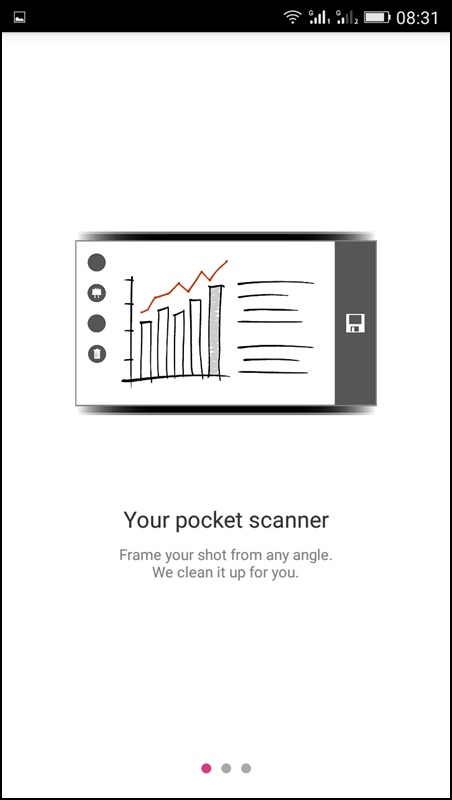
Step 2. Now you will see the welcome screen of Office lens where you will be given a short tutorial on how to use it.


Office Lens
Office Lens

Step 3. Now you will see the camera opens up. You just need to focus on the image that you want to scan and simply click the image.


Office Lens
Office Lens

Step 4. That’s it once done, simply tap on “Save” and choose your desired format. Your scanned documents will only get saved on your Microsoft account.
    Office Lens
    Office Len

    Read More

    HOW TO DOWNLOAD VIDEOS FROM FACEBOOK VIA PC

    Unknown  PC tips, tutorials  3 comments

     a funny video on Facebook or may be an interesting video on Facebook but you want to download it but you cant, your lucky cause this post is for you. It very easy and you don't need any app or software to do that. This tutorial is for PC users

    First of all open the page were the video is and right click on it, you will see a box as shown in the image below


    copy the link in the box as shown in the image blow


    Now go to your address bar and paste it there and change the www. to m. as shown in the image below


    Now it will take you to the mobile view of Facebook. Now click on the video while it is playing right click and click on save video as

    a dialog box will appear now you can rename it and click on save

    wait for it to download that all. In case of any question pls use the comment box. 

    Read More

    How to Verify Your Facebook Business Page

    Unknown  android, Facebook, PC tips, tutorials  3 comments

    How do I get my page verified?

    If you’re an admin and your Page is eligible, you’ll see an option for verification in your Page’sSettings. To verify your Page, you can use your business’ publicly listed phone number or a business document (ex: phone bill) to complete the verification.


    Here’s a step-by-step rundown of how to verify your Page:


    Click Settings at the top of your PageFrom General,
    click Page VerificationClick Verify this Page,
    then click Get Started
    Enter a publicly listed phone number for your business,
    your country and languageClick Call Me Now to allow Facebook to call you with a verification codeEnter the 4-digit verification code and 
    click Continue
    If you prefer to verify your Page with a business document, you may need to upload a picture of an official document showing your business’ name and address.

    Facebook will then review the document with your info to confirm that it matches public records and send you a notification or email about your verification status. Usually the verification process takes a few days.

    Read More

    Glo Jollific8: Glo Unveils New Tariff To Beat Competitors

    Unknown  android, browsing cheat, glo, promotions, tutorials  1 comment


    The new Glo Tariff Plan "Jollific8" offers new subscribers 800% more value on all recharge they make on the new Glo sim even #100 recharge. Also as the new subscribers get eightfold benefits includes free internet surfing, free data that can be gifted (shared) to other existing Glo subscribers and bonus to call all networks in Nigeria.

    How It Works:

    -  On every recharge of #100 and above you get extra #800 + 10MB (50) = #850

    -  When you recharge #200 airtime, you will get #1600 + 25MB (100) = #1,700

    -  Also recharge of #500 gives you #4000 + + 50MB (200) = #4,200

    -  When you recharge #1000 you get #8000 + 100MB (400) = #8,400

    -  Finally, recharge of #5000 gives you #40,000 + 500MB (2000) = #42,000


    Who Is Eligible?

    For now only new subscribers are worthy of the new offer and can do that by obtaining a new Sim, get it registered and recharge by dial *123*recharge pin#... Just do that and go to go.

    What Do I Need To Know?

    - What is the Glo Jollific8?

    Jollific8 is a tariff plan for new customers ONLY on the Glo network which provides the following benefits when the sim is activated:

    • Every recharge gives 8 times the value of recharge amount

    • Every recharge comes with free voice and data bonus

    • Every recharge also comes with free data to gift


    What do I have to do to enjoy these Jollific8 benefits?

    Just buy a new SIM, register, activate it and you are automatically on the Jollific8 tariff plan. Start recharging and you begin to get 8 times the value of recharge plus free data to gift someone


    - How do I opt in for Glo Jollific8 tariff plan and enjoy these benefits?

    You cannot opt in to Jolific8 tariff plan. Only New SIMs can enjoy these benefits.


    - How do I receive and enjoy the Jollific8 bonus?

    Just recharge by dialing *123*PIN# and you will automatically receive 8 times the value of your recharge plus free data to gift someone on the Glo network. Make calls and use data to enjoy these benefits.


    -When will Jollific8 bonus be credited into the customer’s account?


    Your recharge bonus benefits are credited into the different accounts (shown in the table above) immediately you recharge. You can confirm your bonus balance by dialing #122# and *606#


    - How do I check my Jollific8 bonus balance?


    By dialing #122# for Voice/data benefits and *606# for data gift benefits


    - Do I get notified when my Jollific8 Bonus is exhausted?


    Yes, you will receive a notification via SMS


    - Can I transfer the Jollific8 benefits to another customer?


    Only the Gift Data can be transferred to another customer on the Glo network


    - How much do I pay for calls on these packs?


    On-net and off-net calls are charged at 67k/s


    - When do the packs expire?

    Bonus will expire as shown in the table in point 5


    - Can I migrate out of Jollific8?


    Yes. You can migrate out of Jollific8 by dialing the migration code of your desired profile


    - If I migrate out of Jollific8, will I still be able to get 8 times recharge value?


    No. Once you migrate out of Jollific8, you will not be able to receive the 8 times bonus on the new tariff plan


    - Can I migrate back to Jollific8 after migrating out of the profile?


    No. You cannot migrate back to Jollific8 tariff plan once you migrate out of the plan


    - What happens to my unused Jollific8 benefits when I migrate out of the plan?


    You lose the unused Jollific8 benefits when you migrate out of the tariff plan


    - How do I transfer the Gift data?


    Dial *606# and follow the prompt to transfer data to any Glo customer


    - Can I share the free Data?


    No. You cannot share the free data


    - Can I gift the free Data?


    No. You cannot gift the free data but you can gift the Gift Data


    - For how long am I allowed to have the gift data bonus until I decide to use it?


    You can have it for as long as 60days


    - Where am I charged from when I browse if I have Jollific8 bonus Airtime and I’m currently subscribed to a data plan?


    You will be charged first from your data plan before your Jollific8 data bonus account can be charged when you are browsing if you have a data plan


    - What can I do with the All Net free airtime?


    The ALL NET free airtime can be used to make off-net calls to all local networks.


    - Is the Jollific8 tariff plan available for postpaid customers?


    No it is not available for postpaid customers


    - What happens to my unused bonus after validity period had lapsed?


    All unused bonus will be cleared on the day of expiry


    - Which account is charged first if I have credit in my Main account?


    The bonus accounts are charged first and Main account will be charged when the bonus accounts have been fully depleted or expired


    - Can I subscribe to other recharge-based promotions on the network e.g Talk More?


    No you can’t


    - Can I subscribe to other packs such as Jollof, Biggy or IDD packs while still being subscribed to Jollific8?


    Yes you can subscribe to these packs


    - Will I get notification when my Jollific8 bonus account is credited?


    Yes you will be notified when your bonus accounts are credited


    - Is Glo Jollific8 a promotional offer?


    No. Jollific8 is a tariff plan


    - Is the Easyshare service available on the jollific8 tariff plan?


    Yes it is available as you can transfer airtime from your Main account to any glo number


    - For how long can I enjoy the benefits of Jollific8?


    You enjoy the benefits for as long as you are on the plan.

    Read More
    View mobile version
    Subscribe to: Posts (Atom)

    adv

    adv

    mtn data reseller

    mtn data reseller

    promo adverts

    promo adverts

    Stay Connected

    Popular Posts

    • How To change Android IMEI ToBlackberry IMEI
      It pains me to my marrow seeing the fact that some Android users can't use Glo Bis on their device.for the Android users, it is very p...
    • Universal method of changing Android imei to BlackBerry imei
      Lota of my bloggers users/fans have been telling of how difficult the terminal emulator is to them, and some complain about it not working o...
    • FREE BROWSING ON MTN NETWORK IS BACK AND BETA
      Hi everyone, how are you guys doing today. Hope you guys are still  rocking the Glo 0.0k tric k, if not, i'm sorry to say that you'r...
    • How to Find a Stolen or Missing Phone With Android Device Manager
      It is important for every android users to activate this options on their device should in case the unexpected happen. Losing your smartpho...
    • Opera Launched Free VPN For Android, Now Available For Download
      Opera has finally released a free vpn services for android after months of launching an iOS-based VPN app. The VPN is completely free. You c...
    • MIUI V8 Custom Rom For Infinix X551 Hot Note (MT6592)
      Yes, Infinix X551 Hot Note users have not been forgotten. What makes Android device awesome is the ability to tweak it to your taste. I gue...
    • WhatsApp 4 Major Updates You'll Love With Image Drawing
      These are some of the major updates we’ve been waiting for from WhatsApp IM for a very long time which could be worrisome to Snapchat despi...
    • Reports: Samsung Suspends Galaxy Note 7 Sales After Battery Explosions
      Samsung suspended sales of its  Galaxy Note 7  smartphone on Friday, just two weeks after the flagship phone's launch, after findi...
    • TECNO Camon C8 HiOS OTA Upgrade Guide - Beta Version
      Tecno Camon C8 A HiOS Beta Version to make your TECNO phone be unique smarter and fun.  This Beta size is around 40M. Official version ...
    • How to Recover Deleted files Using DiskDigger Pro For Android
      Have you ever landed in a situation where as you mistakenly delete an important file and you ought to use it again probably in the next ...

    LinkWithin

    Related Posts Plugin for WordPress, Blogger...

    Random posts

    Random Posts Widget

    Labels

    2go Add network Airtel android Android cheats Android tweaks appreciation Blackberry blogger tips browsing cheat cheap subscription computer tutorial Computer tweaks Etisalat Facebook free browsing free calls freebies gaming glo iphone Making money through internet mobile cheats mobile tutorials Mobile Tweaks mtn music PC tips PC tutorials phone review phone specs promo promotion promotions rooting specs tech news Tecno tutorial tutorials tutorials mobile tweaks

     
    • Home
    • About Author
    • Ask Question
    • FAQ
    • Privacy Policy

    Back to top

    • Man Behind This Site

      i do just few things but blogging is definetly my thing
    • Contributors

      • Unknown
      • Unknown

      Recent Comments

    • Translate

    Copyright © 2016 niyonice's blog | All Rights Reserved By. Aliu Niyonice | love our blog? niyofans